
How to Integrate NetSuite, Google Sheets, and AI Agents

If you’re as supply chain manager in a fast-growing company that uses NetSuite, odds are you probably also use Excel / Google Sheets alot.
Not that there's anything wrong with NetSuite, but sometimes you just need the flexibility that a spreadsheet provides.
Your average work day may look like dance back and forth between Netsuite and your spreadsheets, and now to make things even more complex, you may also be trying to work the advanced capabilities of AI agents into the mix.
That’s why Several Millers is helping companies to combine these different tools into streamlined & automated workflows that combine the power of Netsuite, the flexibility of Google Sheets, and the intelligence of AI agents.
These workflows connect Google Sheets directly to NetSuite, uses AI agents to parse unstructured documents and search Netsuite to enrich data, and lets users trigger NetSuite transactions from the spreadsheet with a single click. The entire back end runs on Google Cloud, secured by the same IAM permissions your organization already uses.
The rest of this article walks through the architecture in detail — from authenticating to the NetSuite REST API, to storing credentials in Secret Manager, to deploying Cloud Run functions that only authorized Google Workspace users can invoke.
See It in Action
Before diving into the technical setup, here is a quick video example showing a workflow end to end:
Level 1: Authenticating to NetSuite
Everything starts with a secure connection to NetSuite's REST API. We use the OAuth 2.0 Client Credentials flow with certificate-based JWT authentication:
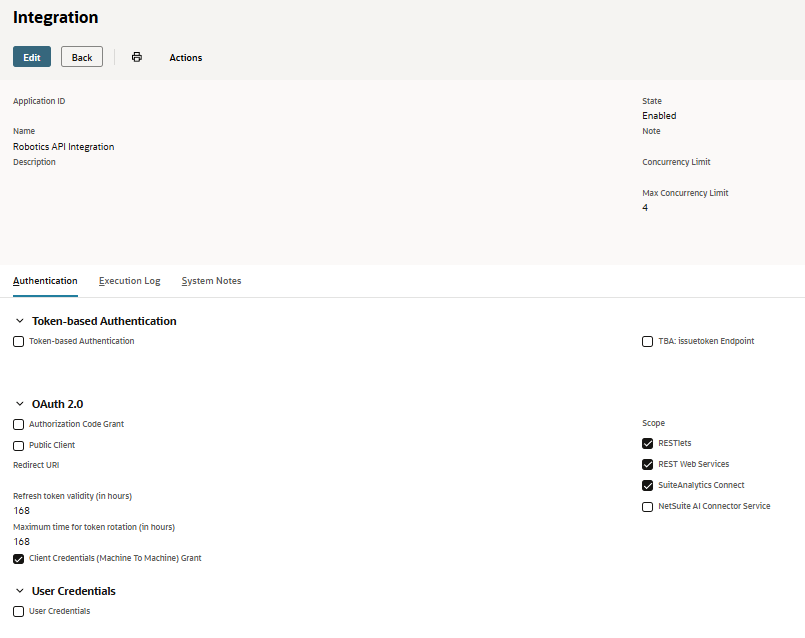
- In NetSuite, you navigate to Setup -> Integration -> Manage Integrations -> New and create a new integration with boxes checked based on the example below. This gives you a Client ID.
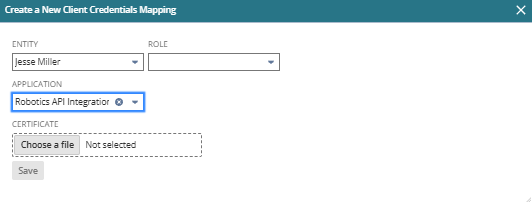
- You generate an EC or RSA key pair. In NetSuite, you navigate to Setup -> Integrations -> OAuth 2.0 Client Credentials (M2M) Setup -> Create New. You select the user you are generating credentials for and the role (Note: the role must have Rest Web Services permission and Log in using OAuth 2.0 Access Tokens permission). Then select the application you registered in step 1. Last upload the public key of your key pair as the certificate. This will give you a Certificate ID.
Level 2: Storing Credentials in Google Cloud Secret Manager
You now have a Netsuite Client ID, Certificate ID, and Private Key. These will be used to authenticate to the Netsuite Rest API, and are highly sensitive credentials. You should store them in Google Cloud Platform's Secret Manager, and only grant access to the service account that you will use to run your Cloud Function (see level 3 below).
Level 3: Cloud Run Functions and IAM Authentication
Each back-end operation (fetching master data, processing invoices with the AI agent, creating item receipts) is deployed as a Cloud Function (which runs on Cloud Run ). The critical deployment flag is "--no-allow-unauthenticated", which means Google Cloud will reject any request that does not carry a valid identity token (see Level 4 below). For even more aggressive security, you can use "--ingress-settings=internal-only" and only trigger via Pub Sub.
cmd = [
    "gcloud",
    "functions",
    "deploy",
    FUNCTION_NAME,
    "--gen2",
    "--runtime=python311",
    "--trigger-http",
    f"--entry-point={FUNCTION_NAME}",
    f"--region={REGION}",
    f"--memory={MEMORY}",
    f"--timeout={TIMEOUT}",
    "--no-allow-unauthenticated",
    "--ingress-settings=internal-only",
    f"--service-account={SERVICE_ACCOUNT}",
    f"--project={PROJECT_ID}",
    "--source=.",
    f"--env-vars-file={env_file}",
]
Level 4: Calling your Cloud Run from from Google Sheets
To trigger the Cloud Functions from our Google Sheet, we will use Google App Scripts (Extensions -> App Script). After opening the App Script console, you will need to connect your Google Cloud Platform project in the settings section. You can then create a new menu in your Google Sheet with buttons that map to the functions you define in the App Script console.
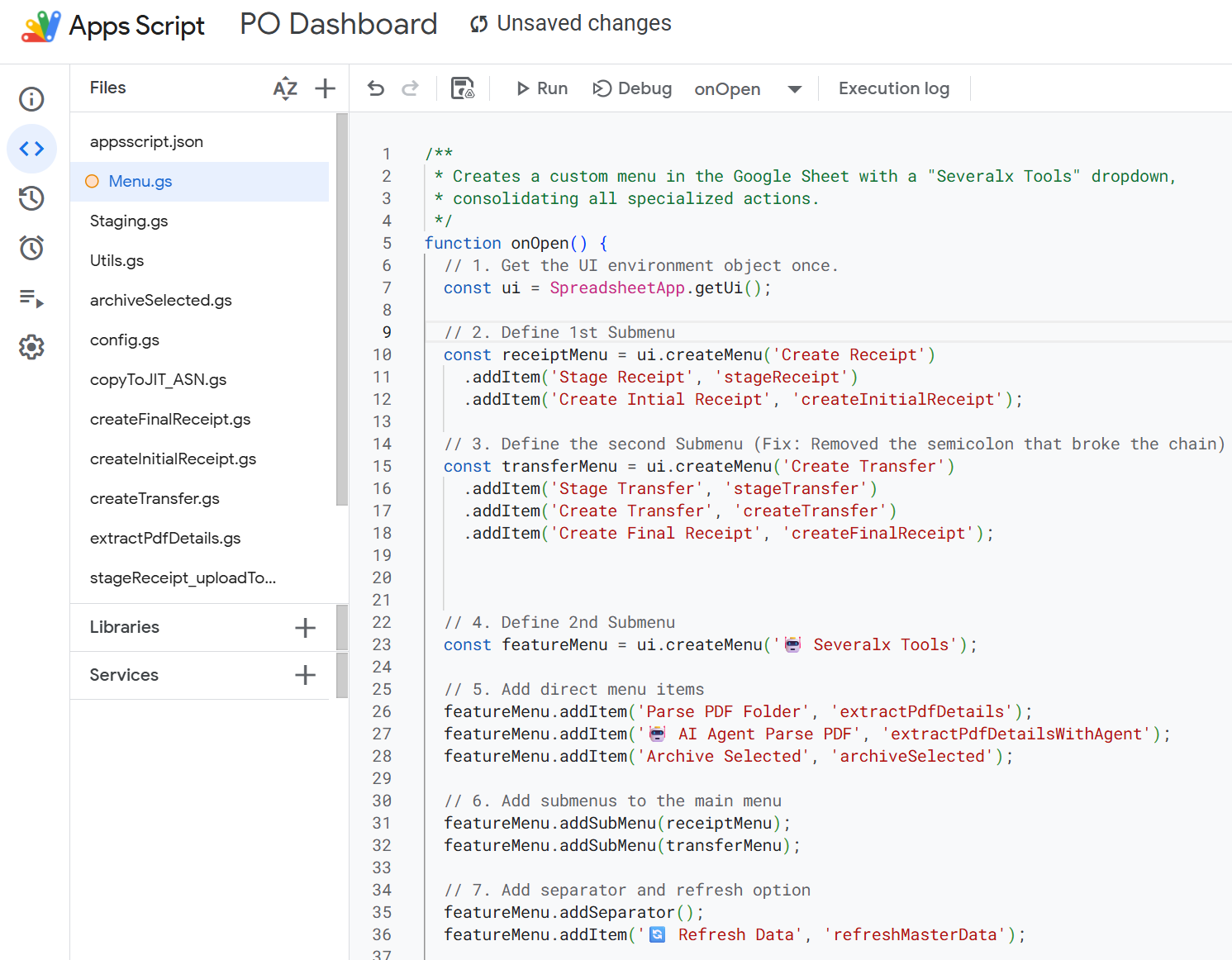
Now, when a user clicks a menu item in Google Sheets, the Apps Script runs and obtains an identity token for the currently logged-in Google Workspace user via ScriptApp.getIdentityToken(), which it then passes it as a Bearer token in the request to Cloud Run:
function callCloudFunction(payload, cloudFunctionUrl) {
    const options = {
        method: 'post',
        headers: {
            'Content-Type': 'application/json',
            'Authorization': `Bearer ${ScriptApp.getIdentityToken()}`
        },
        payload: JSON.stringify(payload),
        muteHttpExceptions: true
    };
    const response = UrlFetchApp.fetch(cloudFunctionUrl, options);
    return JSON.parse(response.getContentText());
}
Google Cloud IAM validates this token. If the user's Google account has the Cloud Functions Invoker role on that function, the request goes through. If not, it is rejected with a 403 before your code ever executes. No API keys, no shared secrets, no custom auth middleware — just the same Google identity your team already uses for Gmail and Drive.
For background jobs that do not originate from a user click (such as the nightly data refresh) we can use Cloud Scheduler to publish a message to a Pub/Sub topic, which in turn triggers the Cloud Function.
Level 5: Syncing Data from NetSuite to Google Sheets
We deploy a fetch_data Cloud Function that queries NetSuite for data and writes the data into designated tabs in the Google Sheet.
The function supports two trigger modes:
Trigger | How It Works | Auth Method |
|---|---|---|
Cloud Scheduler (daily at 2 AM) | Publishes a JSON payload to a Pub/Sub topic; | Service account identity via Pub/Sub |
Manual refresh from Apps Script | User clicks "Refresh Master Data" in the custom menu; Apps Script publishes directly to Pub/Sub | ScriptApp.getOAuthToken() with Pub/Sub scope |
The Apps Script side of the manual refresh looks like this:
function publishToPubSub(payload) {
    const PROJECT_ID = getConfig('PROJECT_ID');
    const PUBSUB_TOPIC = getConfig('PUBSUB_TOPIC') || 'fetch-master-data-topic';
    const url = `https://pubsub.googleapis.com/v1/projects/${PROJECT_ID}`
              + `/topics/${PUBSUB_TOPIC}:publish`;

    const encodedData = Utilities.base64Encode(JSON.stringify(payload));
    const options = {
        method: 'post',
        contentType: 'application/json',
        headers: {
            'Authorization': 'Bearer ' + ScriptApp.getOAuthToken()
        },
        payload: JSON.stringify({ messages: [{ data: encodedData }] }),
        muteHttpExceptions: true
    };
    UrlFetchApp.fetch(url, options);
}
Now the user clicks Refresh Data
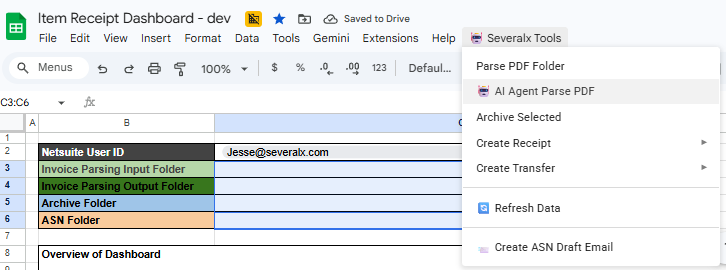
The triggers App Script -> Pub Sub -> Cloud Function -> Netsuite Query -> Data landed back to the Google Sheet.
Level 6: Parsing Documents with Gemini
For simple workflows, you can call the Gemini API directly from your Google App Script with the same authentication procedure shown above to call Pub Sub.
function callGeminiApi(pdfBlob, userContext) {
  var token = ScriptApp.getOAuthToken();

  var YOUR_GCP_PROJECT_ID = getConfig('PROJECT_ID');
  var YOUR_GCP_REGION = getConfig('REGION');

  var GEMINI_API_ENDPOINT = 'https://' + YOUR_GCP_REGION + '-aiplatform.googleapis.com/v1/projects/' + YOUR_GCP_PROJECT_ID + '/locations/' + YOUR_GCP_REGION + '/publishers/google/models/gemini-2.5-flash:generateContent';

  var payload = {
    "contents": [{
      "role": "user",
      "parts": [
        {"text": "Extract all structured information from this PDF as JSON."},
        {"inlineData": {
          "mimeType": "application/pdf",
          "data": Utilities.base64Encode(pdfBlob)
        }}
      ]
    }],
    "systemInstruction": {
      "parts": [{"text": systemInstruction}]
    },
    "generationConfig": {
      "responseMimeType": "application/json",
      "responseSchema": responseSchema
    }
  };

  var options = {
    method: 'post',
    contentType: 'application/json',
    headers: {
      'Authorization': 'Bearer ' + token
    },
    payload: JSON.stringify(payload)
  };

  var response = UrlFetchApp.fetch(GEMINI_API_ENDPOINT, options);
  var jsonResponse = JSON.parse(response.getContentText());
For more advanced workflows (like our agentic pdf parsing agent with Netsuite search tools), you can deploy a function in Cloud Run.
Level 7: Creating NetSuite Transactions from Google Sheets
To create Netsuite transactions from our Google Sheet, we simply deploy a Cloud Function that takes in a data payload and calls the Netsuite REST API with that data payload. We trigger the Clound Function using an App Script that pulls the identity token for the currently logged-in Google Workspace user via ScriptApp.getIdentityToken() and pulls the payload data from the from tables in the Google Sheet.
Level 8: Loading documents from Google Drive to Netsuite
Loading documents to transaction records in Netsuite is a bit tricker because the Netsuite REST API currently does not support this. However, Netsuite does support deploying Restlet functions, which create an API endpoint that you can call to trigger your own custom SuiteScripts.
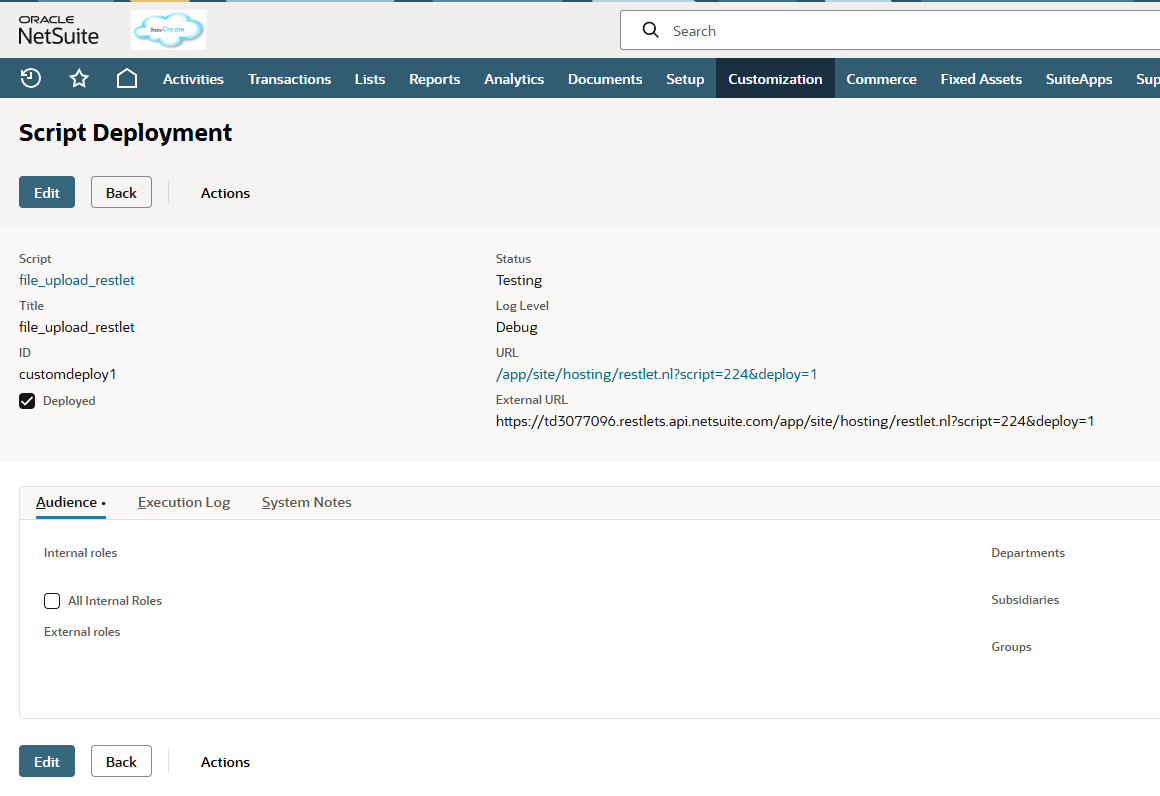
The data flow then becomes Google Sheet -> Google Cloud Function -> Netsuite Restlet -> File Attached to Netsuite Record.
Within the Google Sheet, we can then pull files from Google Drive and convert them to a base64 encoded pack that we pass all the way through.
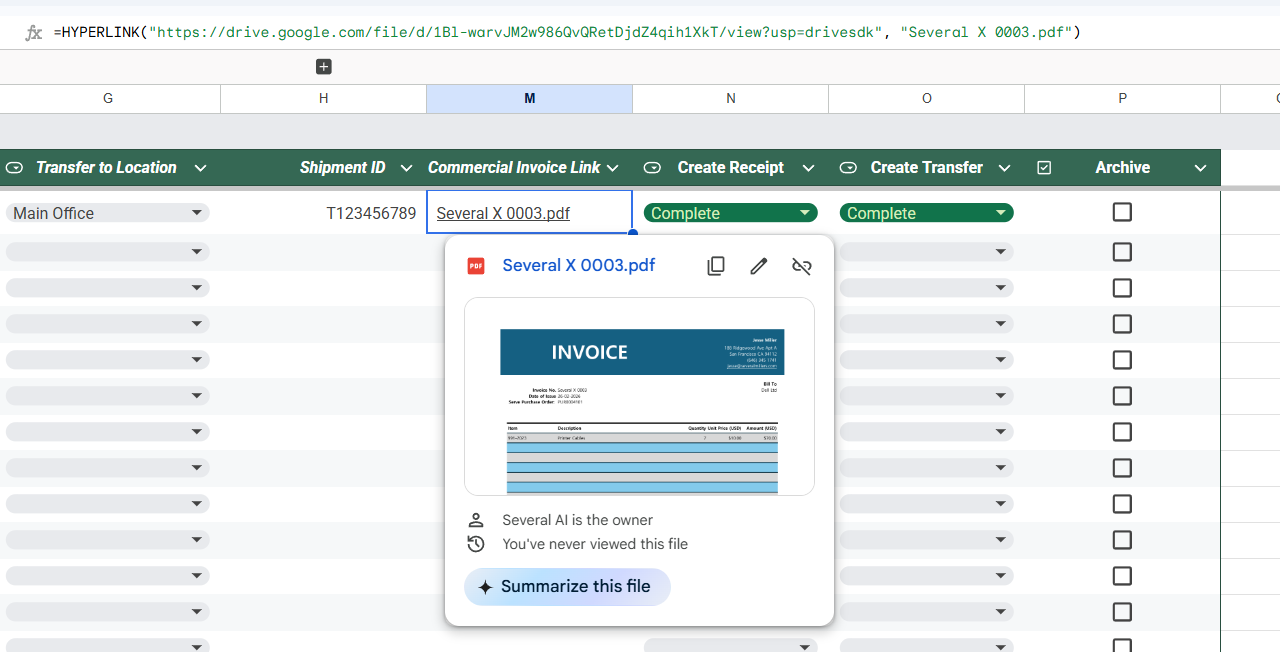
function extractPDFFromLink(hyperlinkFormula) {
    if (!hyperlinkFormula || hyperlinkFormula.trim() === '') {
        return null;
    }

    try {
        // Extract URL from HYPERLINK formula: =HYPERLINK("url", "filename")
        // Handle both with and without leading =
        const urlMatch = hyperlinkFormula.match(/=?HYPERLINK\("([^"]+)"/);
        const filenameMatch = hyperlinkFormula.match(/",\s*"([^"]+)"\)/);

        if (!urlMatch || !filenameMatch) {
            Logger.log('Could not parse HYPERLINK formula: ' + hyperlinkFormula);
            return null;
        }

        const driveUrl = urlMatch[1];
        const filename = filenameMatch[1];

        // Extract file ID from Google Drive URL
        const fileIdMatch = driveUrl.match(/\/file\/d\/([a-zA-Z0-9-_]+)/);
        if (!fileIdMatch) {
            Logger.log('Could not extract file ID from Drive URL');
            return null;
        }

        const fileId = fileIdMatch[1];
        const file = DriveApp.getFileById(fileId);
        const blob = file.getBlob();
        const base64Content = Utilities.base64Encode(blob.getBytes());

        return {
            filename: filename.endsWith('.pdf') ? filename : filename + '.pdf',
            content: base64Content
        };
    } catch (error) {
        Logger.log('Error extracting PDF from link: ' + error);
        return null;
    }
}
This Article was written in partnership with Crystamond Global, a trusted provider of end-to-end ERP and CRM solutions with strong Netsuite expertise.
To learn more, reach out to:
jesse@severalmillers.com
pulkit@crystamond.com
Or visit us at:
https://www.severalmillers.com/
https://www.crystamond.com/
Reach out, our team is happy to chat